
AI Clothes Changer
Use TuneImage's AI clothes changer to change the clothing in a photo with a short text instruction. These are AI-generated outfit edits: you describe the garment, and the model repaints it onto the same picture. In this real example, an olive knit sweater becomes an open light-blue denim jacket over a white T-shirt.
Quick facts
- What it does: changes clothing in an existing photo from a short text instruction — recolor a garment, swap one item, or restyle a full outfit including shoes.
- How: the AI repaints the garment onto the same picture, keeping the face, pose, background and framing — generative editing, not a virtual try-on with fit simulation.
- Cost: uploading is free; one credit is spent only when you press Generate. One free guest edit while daily spots last.
- Output: one 1K PNG kept 7 days in your private history; the uploaded photo is deleted after 24 hours.
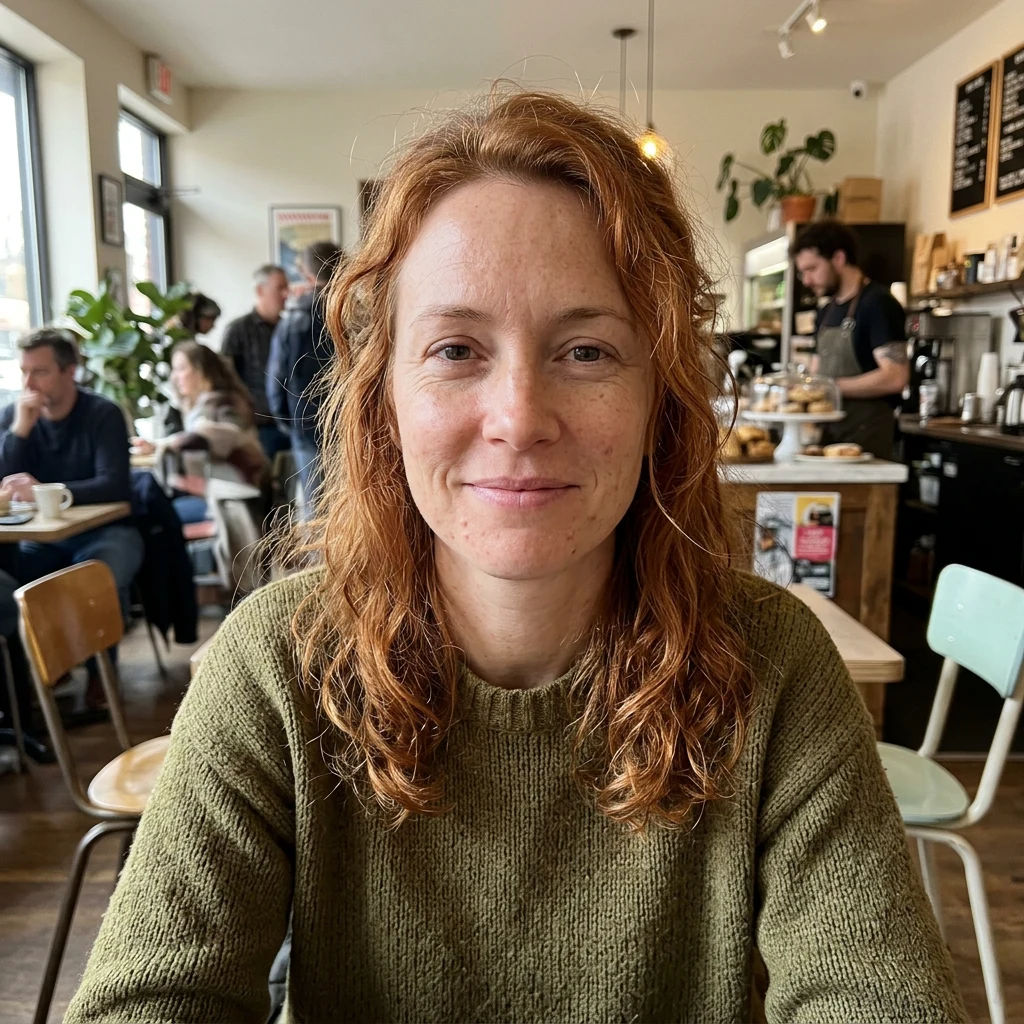 Original
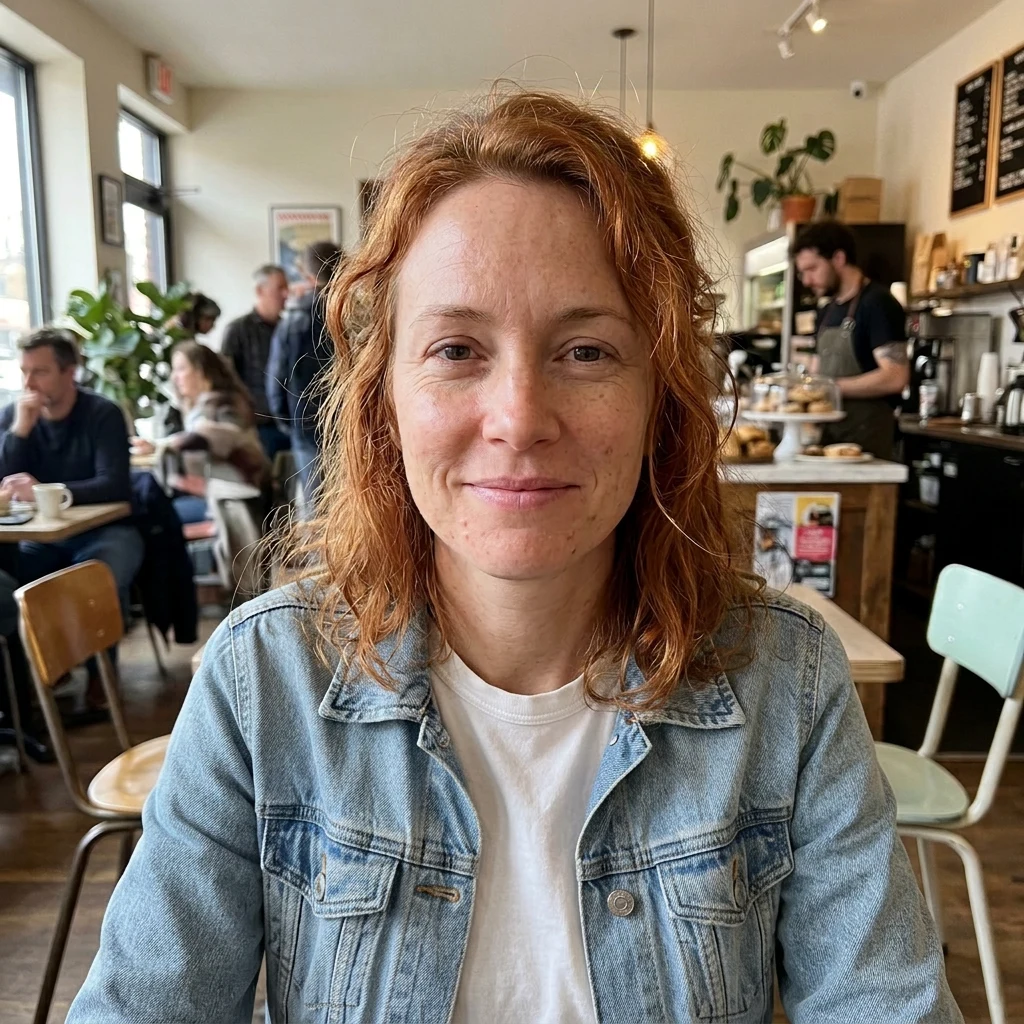 Result
Choosing and uploading a photo is free and uses no credits — one credit is used only when you press Generate in the editor. One free guest edit while daily spots are available.
Denim edit instructions
Replace only the foreground woman's olive knit sweater with an open light-blue denim jacket over a plain white crew-neck T-shirt. Show a pointed denim collar, metal buttons, seams and natural denim folds. Keep her recognizable face, freckles, copper hair, expression, pose, body proportions and original framing. Preserve the cafe, people in the background and lighting. Keep the hair naturally overlapping the new jacket. Do not add jewelry, logos or text.
The editable starting prompt you will get
Replace the main person's upper-body clothing with an open light-blue denim jacket over a plain white crew-neck T-shirt. Add a pointed denim collar, metal buttons, seams and natural folds. Keep their recognizable face, hairstyle, expression, pose, body proportions, lighting, background and framing. Keep the hair naturally overlapping the jacket. Do not add jewelry, logos or text.
This is an editable template, not the exact prompt from the example above — it describes no specific person, so you can point it at any photo and change the garment, colors or layering in the editor before generating.
Choosing a photo for the AI clothes changer
Upper-body shots with the garment fully visible work best — the model needs to see the shoulders, neckline and how the fabric sits. Front-facing poses with arms away from the torso give cleaner results than crossed arms or heavy occlusion. One clearly visible main person is easiest to describe; in a group, identify the wearer by position.
Describe the target garment the way a tailor would: the layer structure ("an open denim jacket over a white crew-neck T-shirt"), the collar ("pointed denim collar", "notched lapels"), the material and its behavior ("natural folds", "tailored"). Then list what must stay: face, hairstyle, pose, background and lighting.
More AI clothes changer examples: blazer and full outfits
The same flow turned a navy crew-neck T-shirt into a charcoal tailored blazer over a white collared shirt — a change of garment structure, not just color.
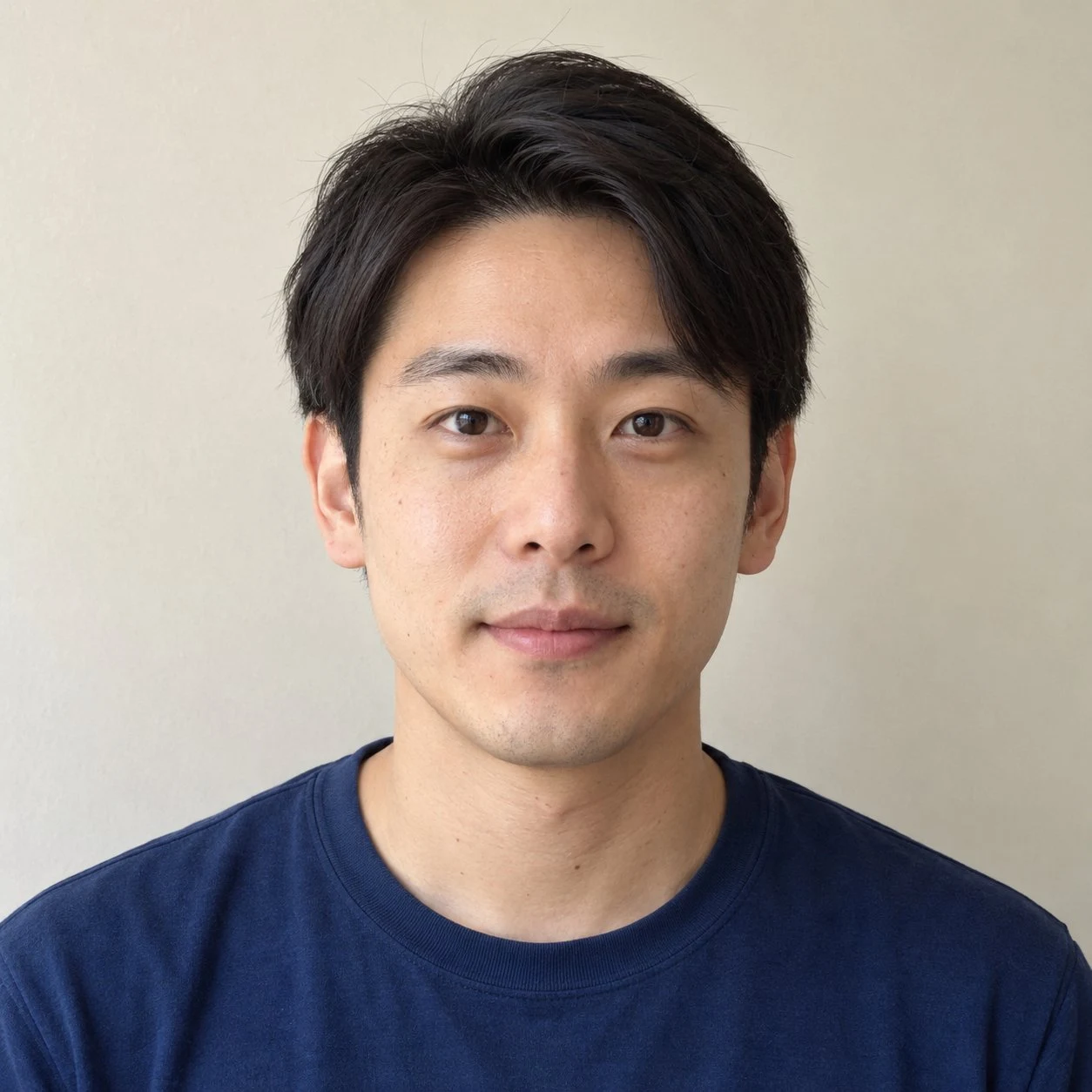 Original
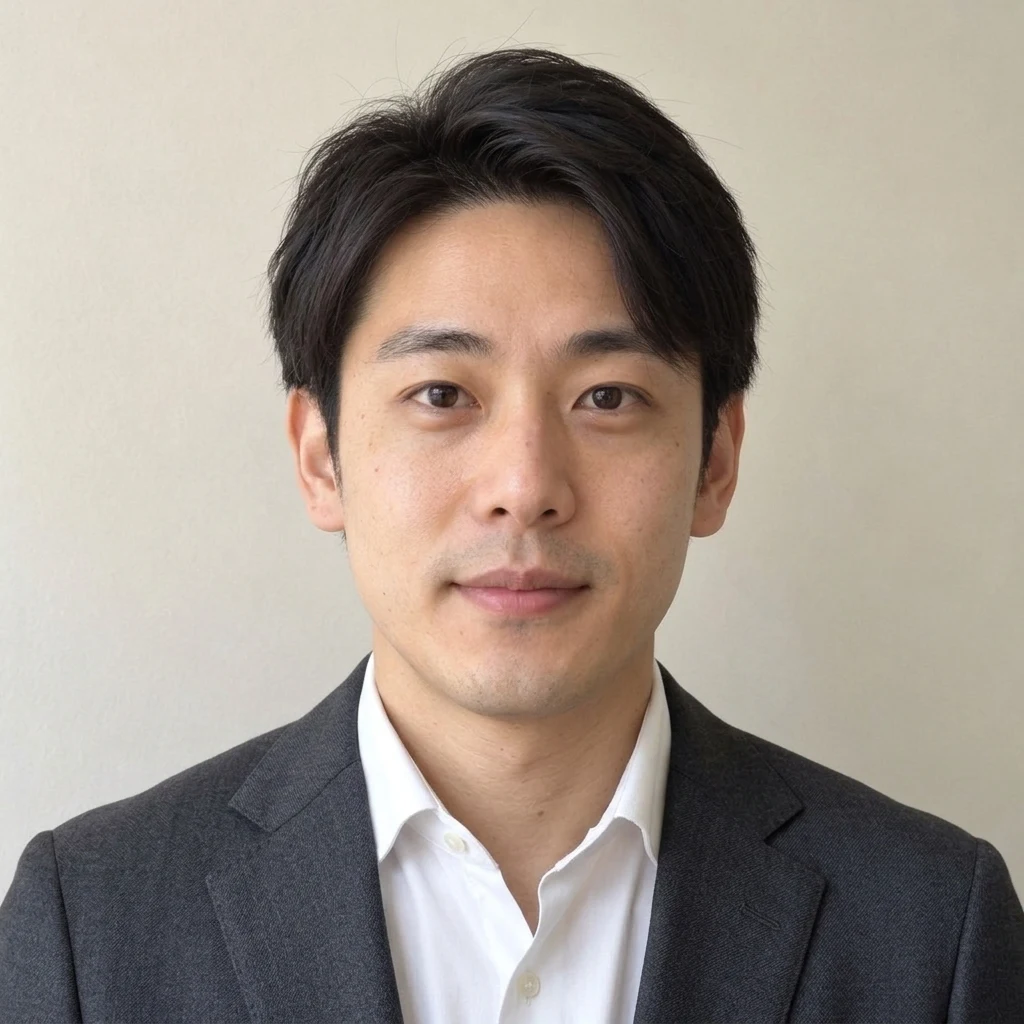 Result
Blazer edit instructions
Replace the navy crew-neck T-shirt with a charcoal tailored blazer over a white collared shirt, with visible notched lapels and a natural open collar, no tie. Change the garment structure, not just its color. Keep the same adult, face, hairstyle, expression, skin texture, pose, plain wall, lighting and original crop. Fit the clothing naturally around the existing shoulders and neck. Photorealistic fabric and seams. No logos, text, accessories or extra people.
You can copy this prompt into the editor as a starting point and adapt the garment description to your own photo.
Outfit changer for a complete look: clothes and shoes
A full-body photo lets you describe a complete outfit, including trousers or a dress and shoes. The two examples below show casual clothes changed into a suit and a dress. Both starting photos show fictional adults. The results were generated with the same image-editing model used by this tool. Keep the entire outfit visible in your photo, and review the face, hands and clothing edges after editing. Results vary.
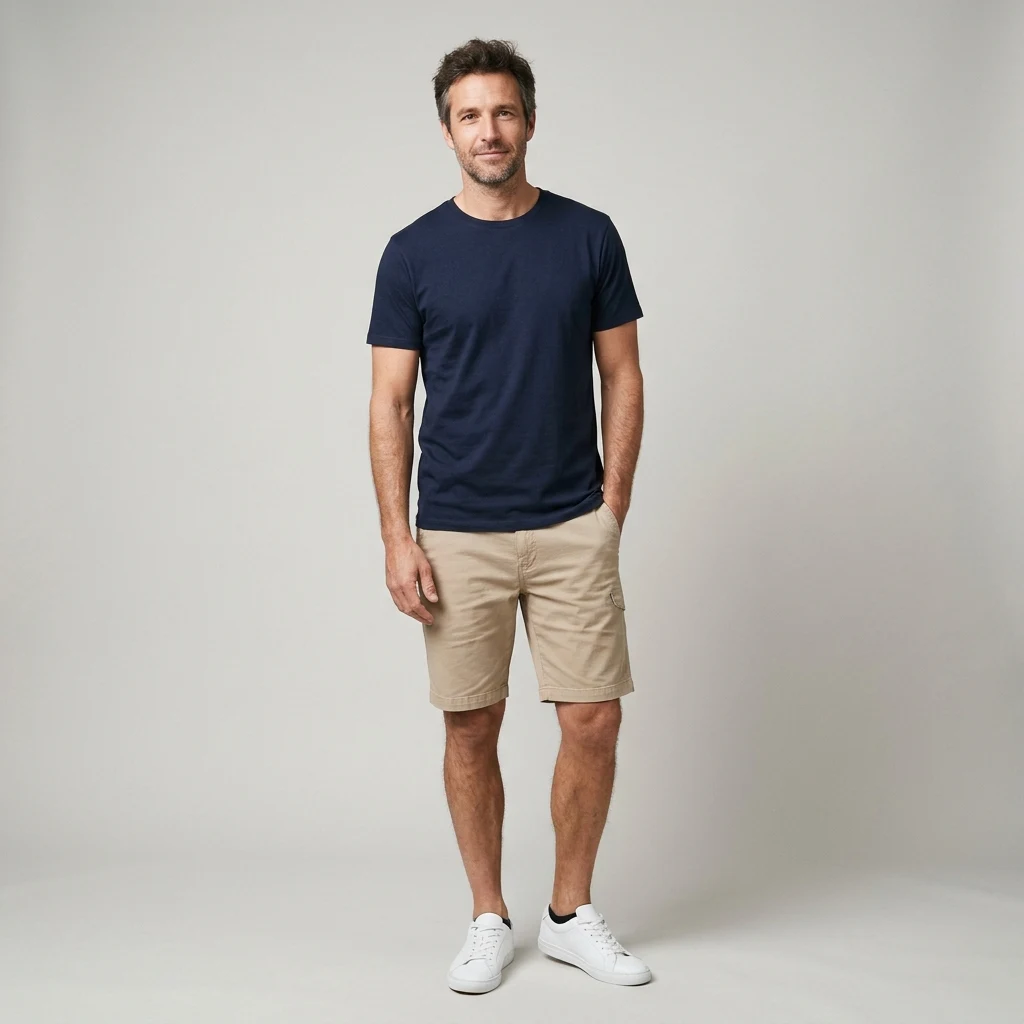 Original
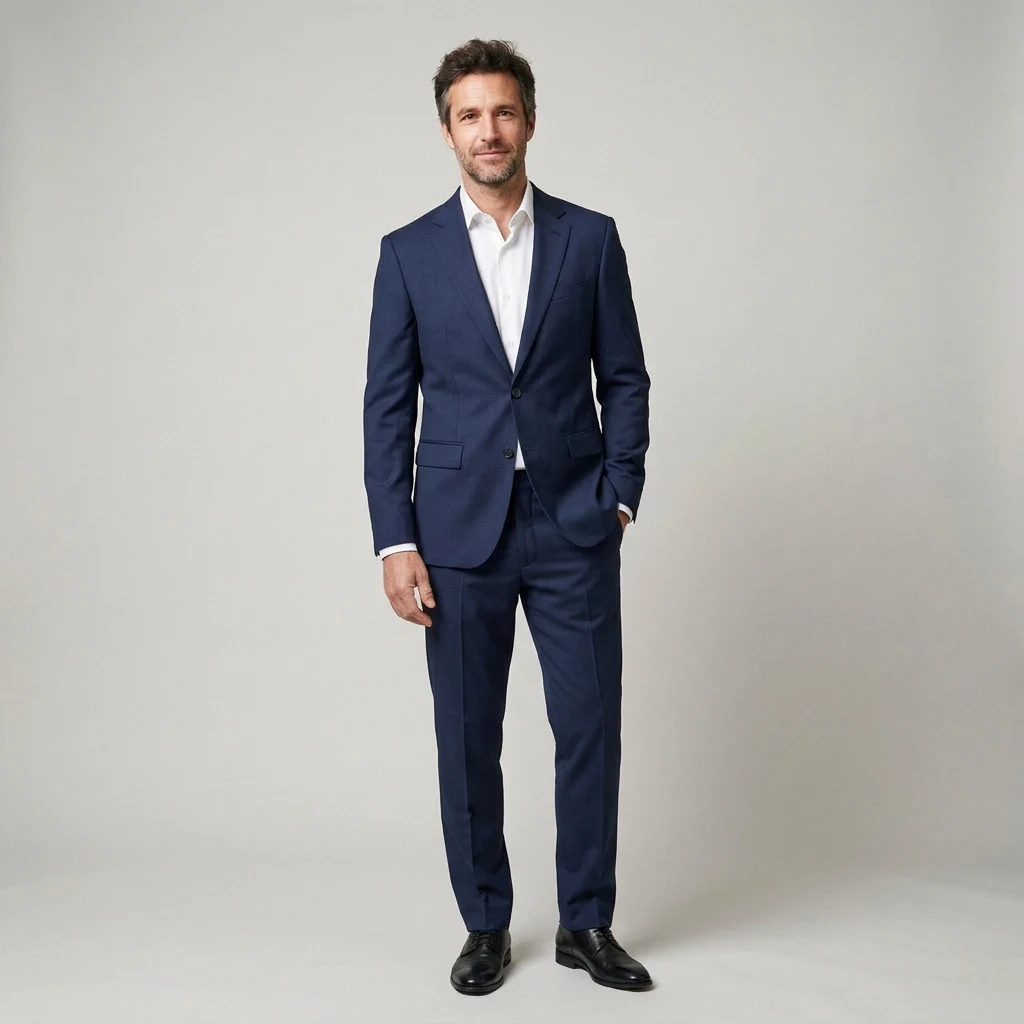 Result
Full suit edit instructions
Change the complete outfit to a well-fitted navy suit, crisp white shirt, and black leather shoes. Preserve the fictional adult man’s face, identity, body, pose, framing, and neutral studio background. Show full body and shoes. Photorealistic fabric and natural fit. No brands, logos, or text.
You can copy this prompt into the editor and adapt it to your own photo — describe your subject and the outfit you want instead.
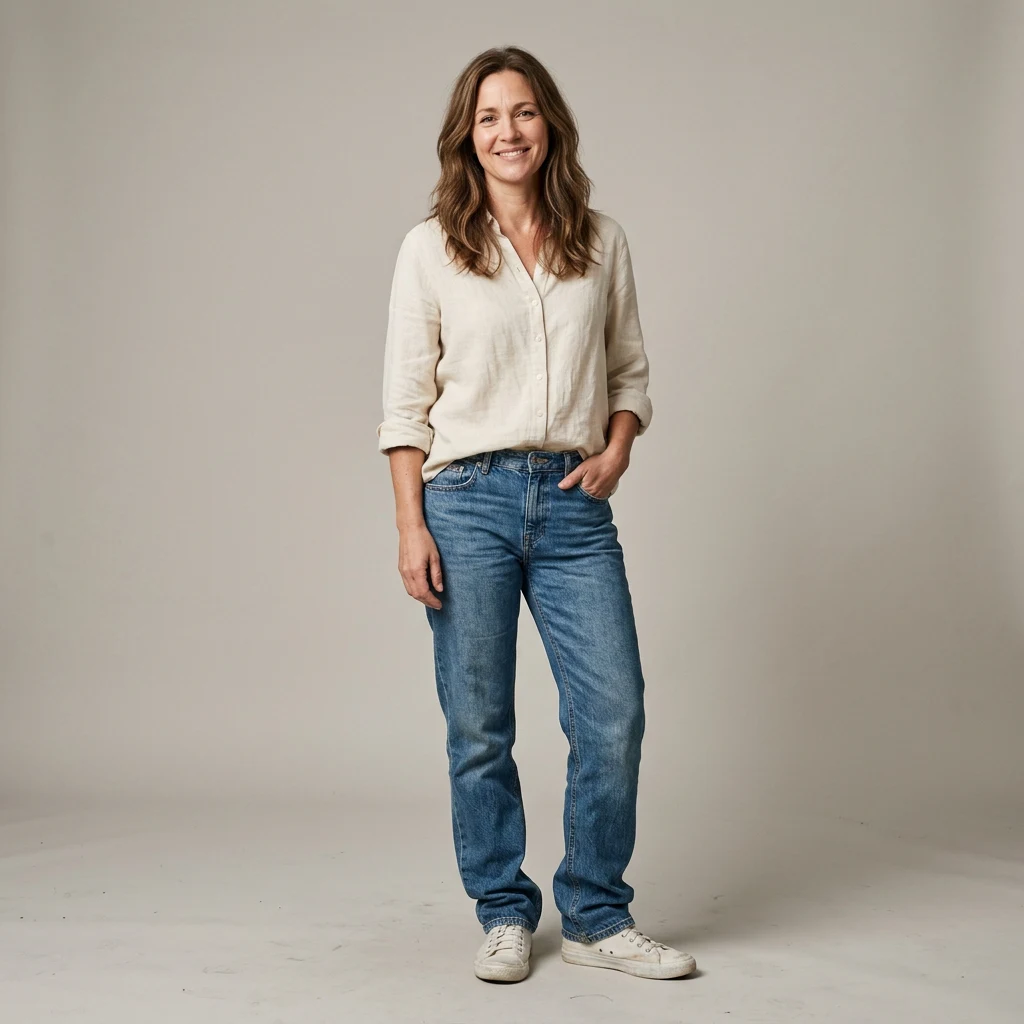 Original
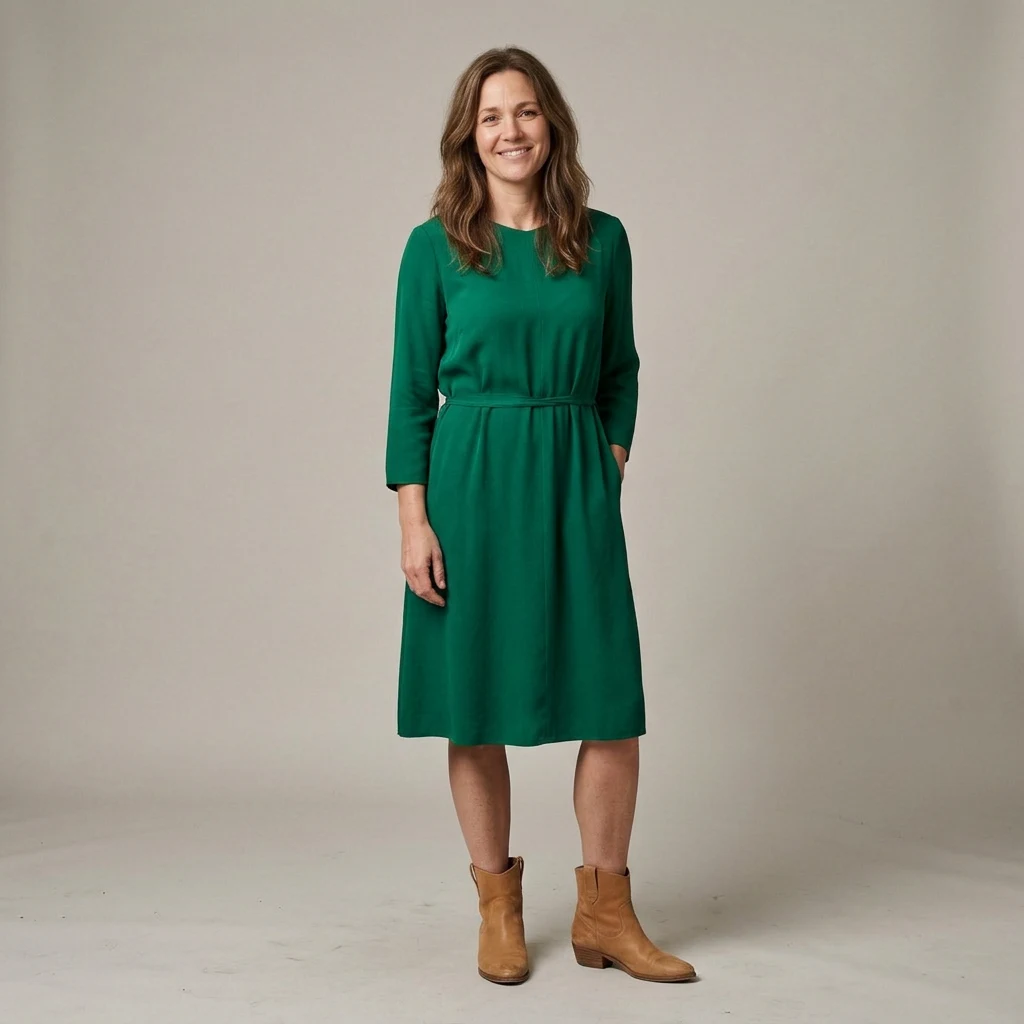 Result
Dress and boots edit instructions
Change the complete outfit to an elegant knee-length emerald dress and tan ankle boots. Preserve the fictional adult woman’s face, identity, shoulder-length brown hair, body, pose, framing, and neutral studio background. Show full body and boots. Photorealistic fabric and natural fit. No brands, logos, or text.
Copy this prompt into the editor as a starting point and adjust the dress style, color and shoes to your own photo.
Can I generate outfit ideas from my photo?
Yes — describe the combination you want to see ("a charcoal suit with a white shirt and black leather shoes", "a summer dress with sandals") and the model renders one visual variant on your photo. It is a sketch of an idea, not a wardrobe service: no closet scanning, no automatic recommendations and no matching to real products, and each edit works from one photo at a time. Two ready starting points: the full suit template and the dress and boots template — adapt the wording to your own photo; the verified example prompts stay under their images above.
Clothes changer vs. virtual try-on
Two different jobs share similar names. A clothes changer — this page — is creative: one photo plus a text description, and the model repaints the outfit in the picture. It suits exploring looks, styling ideas and illustrations. A virtual try-on aims to preview a specific retail product on your body and usually needs that product's image as a second input. Even commercial try-on tools approximate drape and cannot guarantee real sizing or fit.
TuneImage works from one photo and text only: it does not accept a second product image and it knows nothing about sizes, stock or prices — so treat results as visual ideas, not purchase advice.
Pick the scope you need:
- A complete outfit, shoes included — use a full-body photo; see the suit and dress examples above or start from the full suit template.
- One garment changed — an upper-body photo and the denim jacket template are enough.
- Only a new color — the photo color changer walkthrough covers that with a verified example.
Review the result honestly
Asking the model to keep details is a request, not a guarantee. In the denim example above, the tips of the hair visibly changed along with the outfit — look at the face, hairline and background edges in your own result before downloading. If the result is not what you wanted, adjust the prompt and run another edit. Each completed generation uses one credit, even if you do not like the result; technical failures return the credit automatically.
This tool handles upper-body clothing changes and full outfits including shoes, like the four verified examples on this page. It does not predict sizing or fit on your body, does not reproduce a specific retail product exactly, and does not combine two photos into one. For changing only colors, see the photo color changer; for restyling two people into anime, see couple photo to anime.
Frequently asked questions
Is the outfit edit free?
Uploading your photo and editing the prompt are free. One free guest edit is available per browser while that day's shared spots last, and signing in gives up to four free edits in total. After that, one-time credit packs apply — one credit per successful edit.
Will my face and hair stay exactly the same?
Not pixel-for-pixel. The model repaints the clothing area and nearby edges can shift — in our denim example the hair tips changed visibly. Always compare the face, hairline and background against your original before downloading.
Can I change a whole outfit, or just the top?
Both. The examples on this page cover upper-body swaps (sweater to denim jacket, T-shirt to blazer) and two full outfits with trousers, a dress and shoes. Use a full-body photo for a complete outfit, and review the face, hands and clothing edges afterwards — results vary.
Can I try on a specific product I want to buy?
No. This is a generative edit, not a virtual fitting room: it cannot predict how a garment fits your body and cannot reproduce an exact retail item. Use it for visual exploration, not purchase decisions.
Can I combine two photos, like my photo plus a product shot?
No. Each edit starts from exactly one uploaded photo and a text prompt. Two-image compositing is not supported.
What can I upload and download?
One JPG, PNG or WebP up to 10 MB, with a shorter side of at least 512 pixels and at most 20 megapixels. The result downloads as a 1K PNG from the editor.
Ready when you are: open the editor, or browse the prompt library for more starting points.