
AI product photography
Use TuneImage's AI product photography tool to restage one product photo as a studio shot. Compare the bottle example below, then upload your own photo and adapt the editable prompt for its background, surface and light.
Quick facts
- What it does: restages one existing product photo as a studio-style shot — you describe the background, surface and light in plain text.
- Keeps: the product's shape, proportions, colors, materials and label stay exactly as they are; only the setting changes.
- Commercial use: allowed when you have rights to the photo and the edit accurately represents what you sell.
- Cost: uploading is free; one credit is spent only when you press Generate. One free guest edit while daily spots last.
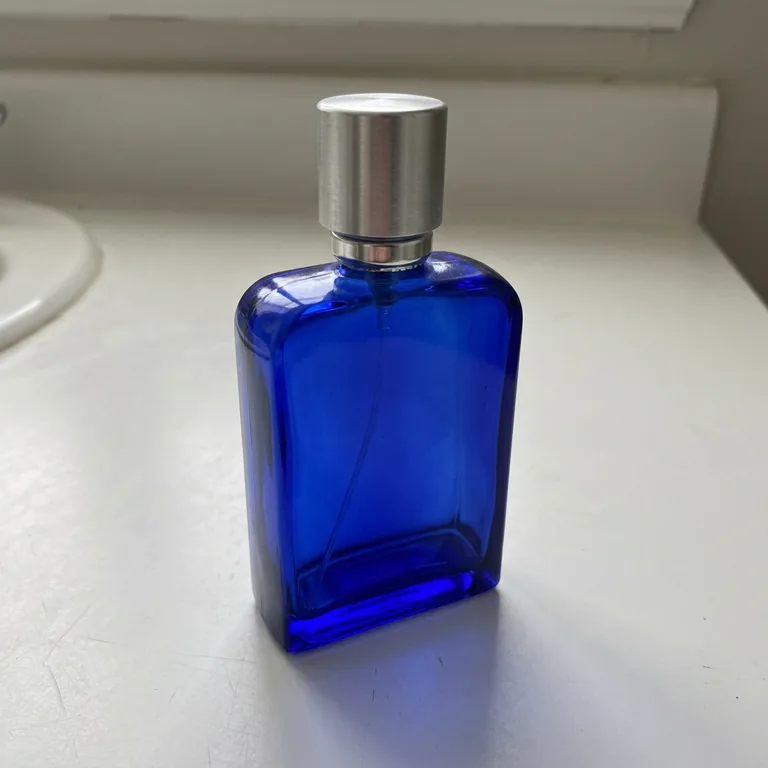 Original
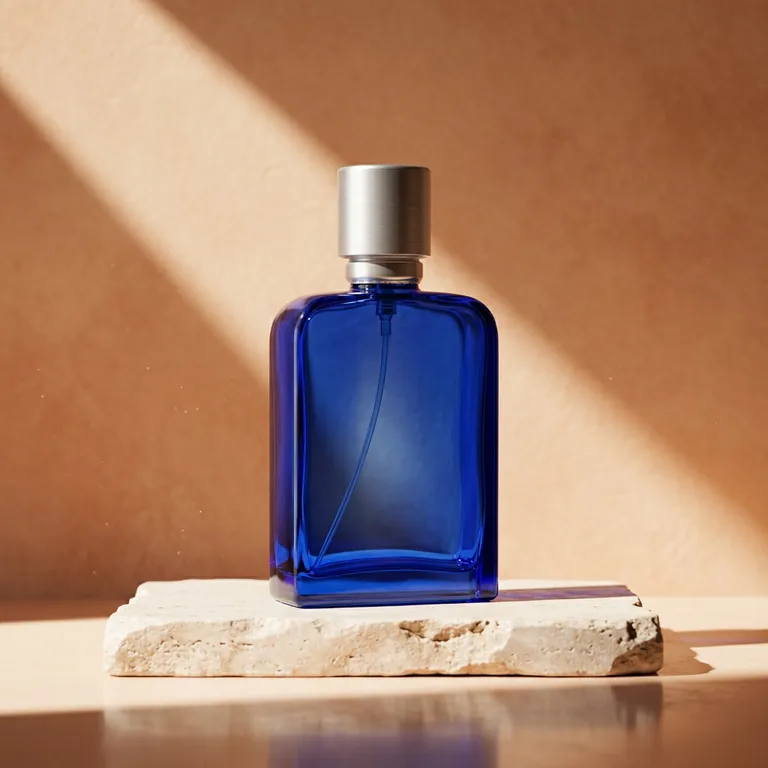 Result
Choosing and uploading a photo is free and uses no credits — one credit is used only when you press Generate in the editor. One free guest edit while daily spots are available.
See the exact prompt used for this example
Create a premium studio product photo. Place this same cobalt bottle on a pale stone plinth against a warm apricot backdrop, with one diagonal shaft of light and a soft reflection. Preserve the exact bottle, blue glass and round silver cap.
The starting prompt you will get (editable)
Create a premium studio product photo. Place this product on a pale stone plinth against a warm apricot backdrop, with one diagonal shaft of light and a soft reflection. Keep the product's shape, proportions, colors, materials and label exactly as they are; change only the setting.
How it works for your product
- Upload your product photo
JPG, PNG or WebP. The sharper and more readable the label, the better.
- Review the pre-filled prompt
The starting prompt above is already filled in — written for your product, not the example bottle.
- Edit the scene, then Generate
Swap the plinth, backdrop and lighting for your own; press Generate only when it reads right. One credit per successful edit.
Prepare a photo for AI product photography
Start with one product in focus and keep its full outline in the frame. Use a simple background so you can see the edges clearly. Photograph the angle you want customers to see; do not rely on the edit to invent a hidden side of the item.
- Use soft, even light so the product's color and material are easy to judge. For glossy packaging, move the light or camera until glare no longer hides the label.
- Check the original at full size. If the logo or small print is unreadable, take a clearer photo before editing.
- Leave a little space around the product for the new setting. Remove unrelated objects that could be mistaken for included accessories.
Shooting tips by product type
These are practical shooting suggestions from general product-photography practice — the blue bottle above is the only tested edit on this page. A cleaner starting photo gives the model more real detail to preserve.
Clothing flat-lay
Lay the garment flat on a plain, contrasting surface and smooth out any folds you do not want kept. Shoot straight down so proportions stay true, and keep the whole outline — collar, cuffs, hem — inside the frame. Even daylight near a window renders fabric color better than mixed indoor light. A flat-lay edit restages the garment itself; it does not show how the item fits a person.
Beauty bottles: reflections and labels
Glossy glass and metallic caps mirror everything nearby, so clear the surroundings and check for your own reflection in the bottle. Angle the light so a soft highlight runs along one edge without crossing the label, and confirm the label text is readable at full size before editing — the model can only preserve detail it can actually see.
Small handmade items: texture and scale
For jewelry, ceramics or crafts, get close enough that the surface texture — glaze, stitching, grain — stays sharp, and include a neutral size reference if the scale is not obvious from the item alone. Keep the background plain so the edit has clean edges to work with, and check the result for smoothed-out texture, the most common loss on small detailed objects.
Describe the background, surface and light
Name three things in your prompt: where the product sits, what is behind it and where the light comes from. For example, try a pale stone surface, a warm plain backdrop and soft light from the left. Use these as scene ideas, then adjust them to your actual photo.
Keep an instruction to preserve the product's shape, proportions, color, material and label. That tells the model what matters; it does not guarantee those details will remain exact. Ask it not to add accessories, packaging or claims that are not part of your product.
Prefer to start from a blank prompt? The prompt library has more starting points, or open the editor directly.
Check the edit before using it in a listing
Compare the result with your original at full size. Check the silhouette, label text, logo, color, texture, reflections and any included parts. A polished image can still misrepresent the item. If a detail has changed, use the original photo or correct the image before publishing it. This is a generated restaging of one photo, not a measurement or a guarantee of exact product color.
FAQ
Is it free to try?
Choosing and uploading a photo is free and uses no credits. One free guest edit is available per browser while that day's shared spots last — one credit is spent only when you press Generate and the edit succeeds.
What product photos work best?
A sharp photo where the product is clearly separated from the background, with the label or logo readable. Plain backgrounds are fine — the prompt replaces the setting, not the product.
Will my label and colors stay accurate?
The starting prompt tells the model to preserve your product's shape, proportions, colors, materials and label, and to change only the setting. As with any AI edit, fine print can shift — always check the label on the result before publishing it.
How do I get a different backdrop or lighting?
After uploading, edit the pre-filled prompt in the editor: replace the pale stone plinth and warm apricot backdrop with your own scene — marble, wood, a colored gradient — and describe the light. Keep the preservation sentence about your product intact.
Can one photo recover angles I never photographed?
No. The edit restages the view you provide; it cannot reliably invent the back, bottom or inside of your product. Photograph each angle you want to show and edit those photos separately.
Is the result guaranteed accurate enough for a marketplace listing?
No. The prompt asks the model to preserve shape, color and label, but generated images can shift fine details, and marketplaces have their own image rules. Compare the result with your original at full size, and use the original photo wherever exact color, print or proportions matter.
Does a clothing flat-lay edit work like virtual try-on?
No. It restages the garment in a new setting; it does not show the item on a body or predict fit. For outfit edits on a person, see the AI clothes changer, and read its stated limits before relying on the result.
What do I get back?
A 1K PNG result kept for 7 days in your private history. Uploads are private, metadata is removed, and the original is deleted after 24 hours.