
Photo color changer
Use TuneImage's photo color changer to recolor clothing or a portrait background with a short text instruction. This is generative editing — you describe the change in words, and the AI repaints the area — not a HEX color picker and not a pixel-locked fill. In the example below, a navy T-shirt turns burgundy while the fabric folds and the portrait stay recognizable.
Quick facts
- What it does: recolors clothing or a portrait background in an existing photo from a short text instruction.
- How: generative editing — the AI repaints the area so fabric folds, lighting and the portrait stay natural; not a HEX color picker or a pixel-locked fill.
- Cost: uploading is free; one credit is spent only when you press Generate. One free guest edit while daily spots last.
- Output: one 1K PNG kept 7 days in your private history; the uploaded photo is deleted after 24 hours.
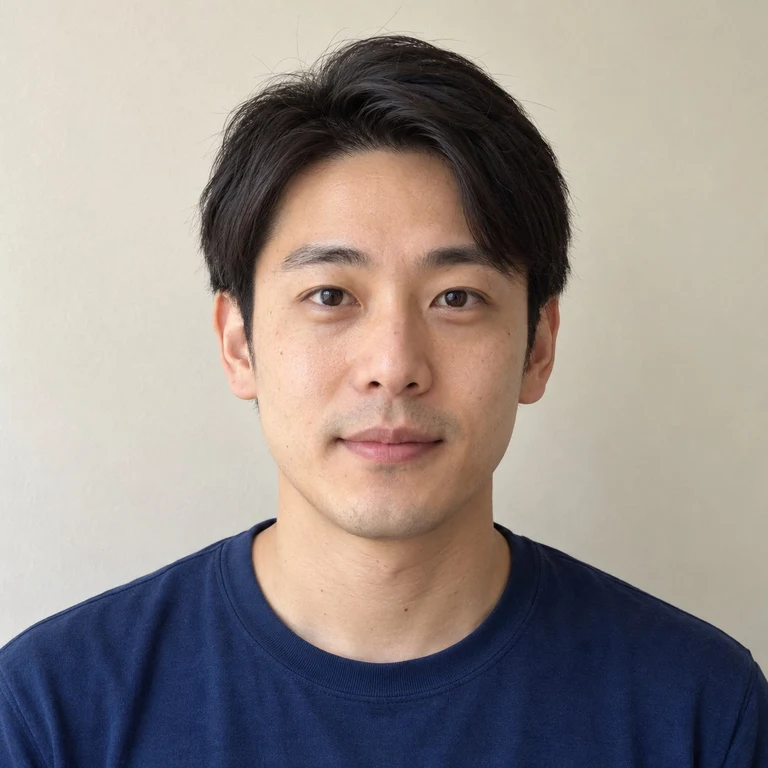 Original
 Result
Choosing and uploading a photo is free and uses no credits — one credit is used only when you press Generate in the editor. One free guest edit while daily spots are available.
Change shirt color
The example above started from the prompt below. After you upload, the editor opens with this starting prompt — change the color name, the garment or the area you want recolored before you press Generate.
See the exact prompt used for this example
Change only the navy blue T-shirt in the reference photograph to burgundy red. Preserve the T-shirt shape, fabric texture, folds, and lighting. Keep the same fictional adult face, hairstyle, skin tone, expression, pose, background, and framing unchanged. Do not change any other part of the image.
The starting prompt you will get (editable)
Change only the shirt to burgundy red. Keep its cut, stitching, fabric texture, folds and lighting. Preserve the person, pose, background and framing. Leave other clothing unchanged.
Use a photo where you can see the front of the shirt, its sleeves and the edges against the background. One visible shirt is easiest to describe. If two people are wearing similar tops, identify the wearer by position as you see them in the uploaded image. For example, write “Change only the striped shirt on the left to forest green. Keep the jacket on the right black.”
A color name with a little detail helps: “muted sage green” gives a clearer direction than “make it lighter.” Keep the part about the fabric and lighting so a dark fold can still look darker than a sunlit shoulder. Compare the neckline, sleeves and any chest print between the original and the result — generative edits can redraw small lettering, so inspect it before using the result in a product listing.
Change a portrait background color
The same editor can recolor a backdrop. In this real edit, a neutral wall behind a portrait becomes plain light blue.
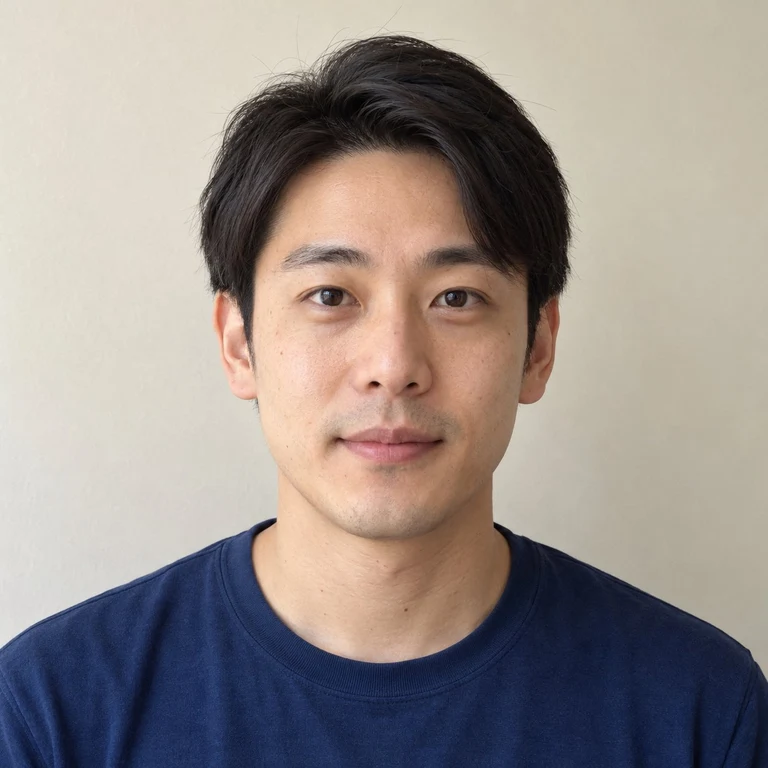 Original
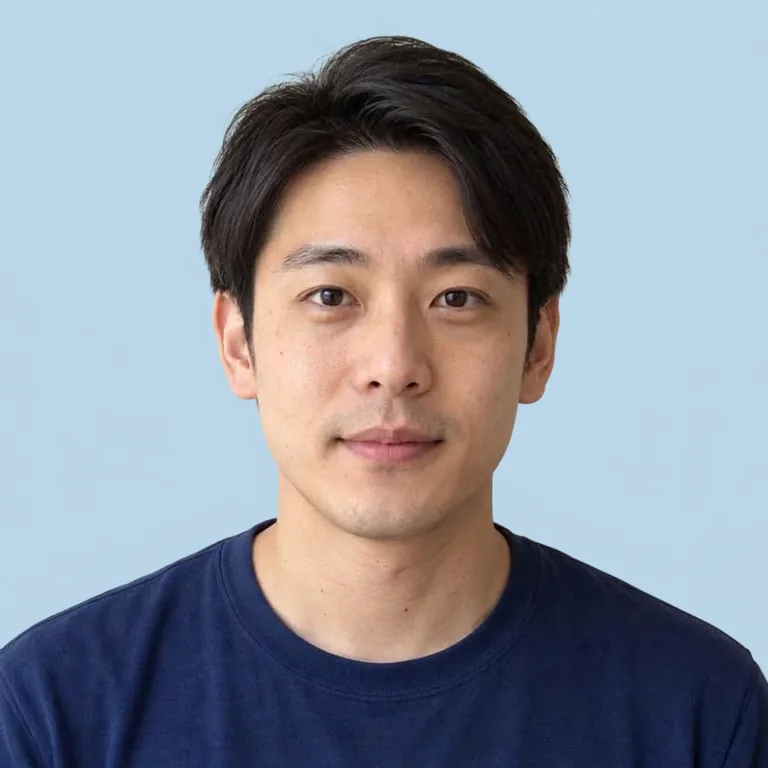 Result
See the exact prompt used for this background edit
Prompt used (originally submitted in Chinese — English translation shown):
Change the background to light blue, keeping the person and their clothes the same.
Original: 把背景换成浅蓝色,人物和衣服保持不变。
To try this on your own photo, upload with the button at the top, then change the prompt in the editor to ask for the background color you want — for example “Replace the background with plain light blue. Keep the original subject, its colors and fine edges intact.” Note that the backdrop change is generative: hair shape and some facial details can be redrawn slightly in the result, so compare the edges against your original before downloading. For a pure cutout with a guaranteed exact fill, a conventional background-removal tool is the better choice.
How to use the photo color changer
- Upload a clear photo where the object or area you want to recolor is easy to see.
- Write the object, the target color and what should stay the same — material, lighting and shadows.
- Generate, compare the result at full size, then download the version you like.
Refine a color edit
If the color is not what you expected, name one object and one target shade before adding more instructions. For example, replace “make the shirt nicer” with “change only the navy T-shirt to burgundy red; keep its fabric texture and folds.” If several objects share a color, identify the target by its position or type rather than asking to replace every blue area.
Check the result at full size. Look at edges, shadows, skin, lettering and nearby objects as well as the new color. TuneImage makes a generative edit: a color name guides the model but does not guarantee an exact sampled or print-ready color. For exact color values or a hand-selected mask, a conventional pixel editor may suit the job better.
You can adjust the wording and deliberately generate another edit. A completed image uses one image credit even if you prefer a different look; another generation uses another credit. Technical failures return the reserved credit automatically. Keep a result you like before trying a variation.
Need a starting point? Browse the clothing and background templates in the prompt library, or see full outfit changes on the AI clothes changer page.
What this tool is not
There is no color wheel, HEX input or pixel-exact fill here — the AI interprets your words and repaints the region, so treat every result as a visual preview rather than a guaranteed brand color. Recoloring keeps the same photo and scene; trying on a different garment, matching an exact dye sample or producing a transparent cutout is a different task. If you want to change the setting of a product photo instead, use the studio product photo editor.
Frequently asked questions
How do I change my shirt to black or white?
Name the target shirt and ask for soft black or off-white fabric with visible seams and shading. Pure black can hide folds and pure white can lose highlights. Review the result alongside the source.
Can I recolor just one shirt in a group photo?
In the editable prompt, identify the person by position and describe the original shirt. Name any similar garment whose color should stay the same. Check every person before downloading.
Will this give me an exact brand color?
Treat the edit as a visual preview. Fabric, light and nearby surfaces affect the color you see. Use a calibrated product photograph or a physical swatch for an exact color match.
Does changing the background keep my face and hair identical?
Not exactly. The background swap is generative, and hair edges or small facial details can shift slightly in the result. Compare the result with your original before using it, and use a background-removal tool when you need pixel-exact preservation.
When is a credit used?
Picking a photo, reviewing the preview and editing the prompt are free. One successful 1K edit costs one credit. You can try a guest edit while daily spots are available.
What can I upload and download?
Choose one JPG, PNG or WebP up to 10 MB with a shorter side of at least 512 pixels and at most 20 megapixels. Download the edited image as a 1K PNG from the editor.
Ready when you are: open the editor, browse the prompt library, or read how TuneImage works.